Form Pilot: Main Page Features Download Order Tutorial FAQ News
How to fill out forms with the Form Pilot form-filler
- I experience problems while trying to close Form Pilot.
- I have several forms to scan. After I scanned the first form, the “Acquire” command is disabled.
- After scanning a form, I get a message that the image has no resolution.
- After opening an image file, I get a message that the image has no resolution.
- When trying to open an existing Form Pilot document, I get an error message that says the program can’t open the document.
- My document is of great importance and I only have one copy of the paper form to fill out. How to make sure that the text I have entered will be printed exactly in the right places?
- The text printed on the paper is not in the right places as one sees it on the screen.
- My image is displayed only partially.
- The form is being printed with a wrong color.
- How to correctly scan a form and set it up to appear in Form Pilot for later use?
- How do I use printer fonts to speed up text printing?
- How do I save the form with text as an image?
- How do I put an image (or a part of it) on the Shelf?
- How to insert a signature into a document?
- I have inserted my signature into a document, but I can’t scale it using the handles.
- I want to save my document as PDF.
- How do I change PDF generation options?
- How to change PDF security options?
- How to repeatedly fill out the same form?
- Is it possible to export and import data into Form Pilot?
- How to reduce the size of the filled form before sending it by email if the sender and the recipient have the same form on their PC?
- I installed the program, but unable to utilize virtual printer.
- How get the program work under a restricted user?
- Is there a possibility of controlling the way that a user can tab throught the text fields?
- The performance is slow. What should I do?
- How do I identify font that was used in the scanned document and its size?
- I opened a PDF document in IE6.0 browser. When I closed the window with this PDF document, all IE windows got closed and my PC froze.
- I have a scanner and a printer combined in one device. When I scan a form, it looks grey, and when I print it, it is black.
- I have a graphics file that is not supported by the program. How can I open it?
- While trying to print a Legal formated .pdf document with virtual printer, a portion of it is trimmed out.
- How do I put the text field on top of the rectangle to make the text field available for editing?
- How do I use background texture to hide a piece I don’t need?
- The program appeares to be stuck in the same place. As I type, the letters pile on the same spot.
- How to change color for all text fields?
- How to create forms to be filled out by my customers?
- How to find and install an additional spell check dictionary?
- Due to pure scanning quality, the scanned image has a gray background and/or the text is not clear. How do I fix it?
- When I try to scan an image, I get an error message “Can’t find a scanner”.
- I am not able to change the font size, thus I cannot fit needed text into the fields on the form.
- I have Form Pilot for Windows and I am going to buy a Mac computer. I am curious if I can transfer my forms I have saved in the Windows version.
- How do I change the X mark to a Check mark to insert in a checkoff box in a form?
- How do I backup documents created in Form Pilot and how do I restore them from a backup?
- I have captured a document with a camera, the document is in a RAW format. Why I can’t open it in Form Pilot?
- I need to print the document in landscape. How do I change the page orientation?
- What is the difference between the “Text” tool and the “Text Field” tool?
-
[ Form Pilot Home ] [ Form Pilot Pro ] [ Form Pilot Office ]
I experience problems while trying to close Form Pilot.
Please check if the scan dialog was closed after scanning was complete. If not, please close it and then exit Form Pilot.
-
[ Form Pilot Home ] [ Form Pilot Pro ] [ Form Pilot Office ]
I have several forms to scan. After I scanned the first form, the “Acquire” command is disabled.
It happened because the scan dialog was not closed after you scanned the first form. To scan a new form, just switch to the scan dialog and click the “Scan” button. After scanning forms please close the scan dialog.
-
[ Form Pilot Home ] [ Form Pilot Pro ] [ Form Pilot Office ]
After scanning a form, I get a message that the image has no resolution.
Please make sure that the resolution in your scanner driver is not zero or enter image resolution value manually in the opened dialog.
-
[ Form Pilot Home ] [ Form Pilot Pro ] [ Form Pilot Office ]
After opening an image file, I get a message that the image has no resolution.
Please make sure that you did not save the image in the Bitmap OS2 format or enter image resolution value manually in the opened dialog.
-
[ Form Pilot Home ] [ Form Pilot Pro ] [ Form Pilot Office ]
When trying to open an existing Form Pilot document, I get an error message that says the program can’t open the document.
Probably, this document was created with an older version of Form Pilot (lower than v.1.50). Please make sure that your document (.fdc) and the form image it uses are in the same folder.
-
[ Form Pilot Home ] [ Form Pilot Pro ] [ Form Pilot Office ]
My document is of great importance and I only have one copy of the paper form to fill out. How to make sure that the text I have entered will be printed exactly in the right places?
If you have to fill out a very important preprinted document, make sure that the entered data is exactly in the places it should be. Read more…
-
[ Form Pilot Home ] [ Form Pilot Pro ] [ Form Pilot Office ]
The text printed on the paper is not in the right places as one sees it on the screen.
To solve this problem:
- Use the “Move the image” tools

Or: - When you choose the “Print” command, the “Print options” dialog box comes up:
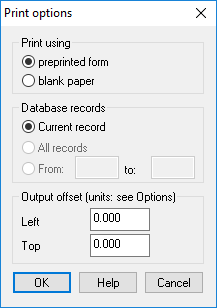
Here you can specify the output offset. This offset can be both positive and negative. Use this offset to get your text and other objects printed in the right place.
- Use the “Move the image” tools
-
[ Form Pilot Home ] [ Form Pilot Pro ] [ Form Pilot Office ]
My image is displayed only partially.
- Access your printer settings and make sure that page orientation layout (portrait/landscape) is correct.
- Make sure that the size of the form you scanned does not exceed the size of the paper format currently selected for your printer.
- You probably set up the wrong resolution settings for your image that is less than the resolution you used while scanning your form.
-
[ Form Pilot Home ] [ Form Pilot Pro ] [ Form Pilot Office ]
The form is being printed with a wrong color.
- Try changing your scanner/printer settings.
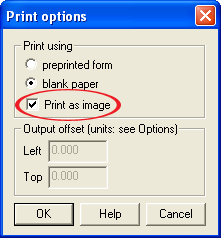
Or: - After you select the “Print” command, please make sure that the “Print as image” setting is activated in the “Print options” dialog:
- Try changing your scanner/printer settings.
-
[ Form Pilot Home ] [ Form Pilot Pro ] [ Form Pilot Office ]
How to correctly scan a form and set it up to appear in Form Pilot for later use?
Insert a paper document, which you usually fill out using a typewriter into your scanner. Read more…
-
[ Form Pilot Home ] [ Form Pilot Pro ] [ Form Pilot Office ]
How do I use printer fonts to speed up text printing?
Choose the “Print Setup” command from the File menu and select a printer that can use built-in fonts. Set one of the supported printer fonts (they are displayed with
 icon) for every text field and then print on the pre-printed form.
Note: This method is only applicable to printing text data on a preprinted form. It is not possible to use it for printing the form itself.
-
[ Form Pilot Home ] [ Form Pilot Pro ] [ Form Pilot Office ]
How do I save the form with text as an image?
1) Fill out your form in the program.
2) Select the File | Export menu command and save your document in any graphic file format supported by the program.
-
[ Form Pilot Home ] [ Form Pilot Pro ] [ Form Pilot Office ]
How do I put an image (or a part of it) on the Shelf?
1) Scan the image.
2) Crop a part of the image that you want to put on a shelf (use the button on the “Image Tools” panel), press the “Do” arrow:
  .
.
3) Save the picture ( Image | Save image as… )
4) Insert the picture into your document ( Edit | Insert Picture…)
5) Click on the picture to make it active and put it on the shelf (Edit | Put on the Shelf).
-
[ Form Pilot Home ] [ Form Pilot Pro ] [ Form Pilot Office ]
How to insert a signature into a document in Form Pilot?
If your document should contain a signature, you can insert is as an image. Read more…
-
[ Form Pilot Home ] [ Form Pilot Pro ] [ Form Pilot Office ]
I have a scanned file of my signature which I have placed on the shelf. I have inserted it into a document, but I can’t scale it using the handles…
Please activate any tool on the “Drawing Tools” toolbar. Then you can “stretch” the signature with the mouse.
-
[ Form Pilot Pro ] [ Form Pilot Office ]
I want to save my document as PDF.
Open your document, go to the File menu and select the “Save as PDF…” command.
-
[ Form Pilot Pro ] [ Form Pilot Office ]
How do I change PDF generation options?
Click menu Options and switch to the PDF tab.
-
[ Form Pilot Pro ] [ Form Pilot Office ]
How to change PDF security options?
Click File | Properties… and switch to the PDF Security tab. Here you can change user password, owner password, protection key length (40-bit or 128=bit) and other security options. Selected options will apply only to the current document.
-
[ Form Pilot Pro ] [ Form Pilot Office ]
How to repeatedly fill out the same form?
Each document can contain more than one record. Read more…
-
Is it possible to export and import data into Form Pilot?
You can import data from your database into Form Pilot Office document or export data from Form Pilot Office document to the database (Access, DBF databases and more are supported). Read more…
-
[ Form Pilot Home ] [ Form Pilot Pro ] [ Form Pilot Office ]
How to reduce the size of the filled form before sending it by email if the sender and the recipient have the same form on their PC?
1) Delete the main (form) image from the filled out document (Image | Delete image)
2) Save your file (with the text only) (File | Save As…)
3) Send this file to a recipient. He/she will be able to save it to his/her computer, open (File | Open…)
and load the same form image (Image | Load Image…)
-
[ Form Pilot Home ] [ Form Pilot Pro ] [ Form Pilot Office ]
I installed the program, but unable to utilize virtual printer.
1) Go to Control Panel | Printers and Faxes, choose Form Pilot Office from the printer list, click the Printer menu and make sure that the ‘Use Printer Offilne’ option is unchecked.
2) Try to decrease virtual printer resolution by 100-200dpi. If it doesn’t help, see the next item.
3) Reinstall the program. Please pay attention that it is necessary to restart your computer during the installation. Also make sure that you log in as an Administrator*.
* If you want to log in as a User, you can ask your administrator to create special settings for you.
See question #23: How get the program work under a restricted user?
4) If the program reinstallation does not help, you probably have several printer drivers installed on your system and they might be in conflict. Please uninstall the drivers that you don’t need as well as Form Pilot Office driver and reinstall the LPT1 port. Then install Form Pilot Office again.
5) If all this did not help please write us a message via our support form and let us know:
- your PC configuration
- your PC operating system
- whether Service Pack 2 is installed (for Windows XP)
- what port is used for program’s virtual driver
- what Adobe Reader version you have on your PC
- whether you work in the network or have a local PC computer
- what printers you have installed besides our virtual printer
- whether you have this result only when you sent a single page to the virtual printer
- whether you get any error message and if yes, then which
-
[ Form Pilot Home ] [ Form Pilot Pro ] [ Form Pilot Office ]
How get the program work under a restricted user?
To get the program work under a restricted user, Administrator should set up the following:
- “List folder contents” and “Read” rights for “WINDOWS\SYSTEM32\spool\PRINTERS” folder.
- “List folder contents”, “Read”, “Write”, “Modfy” rights for the system temp directory (default “WINDOWS\TEMP”).
- “Print”, “Manage Printers” and “Manage Documents” rights for the printer.
- “Read”, “Write”, “Modfy” rights for the “WINDOWS\WIN.INI” file.
-
[ Form Pilot Home ] [ Form Pilot Pro ] [ Form Pilot Office ]
Is there a possibility of a tab index or controlling the way that a user can tab throught the text fields and checkboxes of the document?
You can change the tab index using the
 and
and  tools on the Object Style toolbar. To set a new tab order:
1) Activate tab order setup mode by clicking on the
button.
2) Click on the field where you are going to change tab order.
3) Set new order number in the window for this field and press Enter.
4) Repeat operations 2 and 3 for every field you would like to change tab order.
5) To deactivate tab order setup mode, just select any tool on the Drawing Tools bar, for example, .
.
-
[ Form Pilot Home ] [ Form Pilot Pro ] [ Form Pilot Office ]
The performance is slow. What should I do?
1) This may be caused by the virtual printer that Form Pilot program use. Lower the resolution in the Form Pilot Office printer settings window, this will reduce the size of the printed document.
This problem can also occur if the main image of the document is too large.
2) You may want to adjust the scanner (lower color depth and/or resolution).
3) If the document already exists, you may want to save it with lower color depth then re-load the copy you’ve just saved using Image | Save Image As… and Image | Load Image… commands. Don’t forget to create a backup copy of the document.
-
[ Form Pilot Home ] [ Form Pilot Pro ] [ Form Pilot Office ]
How do I identify font that was used in the scanned document and its size?
You can use free applications that usually come with scanners or use MyFonts which is a free web service. In addition, there are some paid programs that identify fonts.
-
I opened a PDF document in IE6.0 browser. When I closed the window with this PDF document, all IE windows got closed and my PC froze. What should I do?
In Adobe Reader, turn off option Edit | Preferences | Internet | Display PDF in browser. Then Re-start IE.
-
[ Form Pilot Home ] [ Form Pilot Pro ] [ Form Pilot Office ]
I have a scanner and a printer combined in one device. When I scan a form, it looks grey, and when I print it, it is black.
First option: try adjusting settings for scanner and printer.
Second option: after you scanned the form, use the “White reference correction” option.
-
[ Form Pilot Home ] [ Form Pilot Pro ] [ Form Pilot Office ]
I have a graphics file that is not supported by the program. How can I open it?
Use any image editor to convert it to a format that is supported by the program. In case you have Form Pilot Office, you can use Form Pilot Office virtual printer (print this file from any other program “with” Form Pilot Office printer; it will appear in Form Pilot Office).
-
[ Form Pilot Home ] [ Form Pilot Pro ] [ Form Pilot Office ]
While trying to print a Legal formated .pdf document with virtual printer, a portion of it is trimmed out.
Make sure the Legal format is chosen in virtual printer settings as well as in those of your current printer.
-
[ Form Pilot Home ] [ Form Pilot Pro ] [ Form Pilot Office ]
I have a rectangle that completely covers the text filed, i.e. is over it. How do I put the text field on top of the rectangle to make the text field available for editing?
Choose menu Edit | Freeze Object to freeze the objects that cover other elements and therefore prevent the latter from being edited. Also the command allows you to freeze the objects that cover free space of the page and therefore prevent you from creating new objects.
-
[ Form Pilot Home ] [ Form Pilot Pro ] [ Form Pilot Office ]
How do I use background texture to hide a piece I don’t need?
Choose the “Copy Region” button in the “Image Tools” panel. Select a region of background you will use to cover the unwanted piece.
Click and drag the selected region to a desired place.
-
[ Form Pilot Home ] [ Form Pilot Pro ] [ Form Pilot Office ]
First two attempts, the program worked fine for several forms. Then it appeared to be stuck in the same place. As I typed, the letters piled on the same spot.
Make sure that the “Character Pitch” button
 on the “Object Style” toolbar is disabled. This problem may occur when this button is active and character spacing value is 0.
-
[ Form Pilot Home ] [ Form Pilot Pro ] [ Form Pilot Office ]
How to change color for all text fields?
1. Choose menu Edit | Select All to select all text fields.
2. On the “Object Style” toolbar, select an appropriate color for your text (“Font and line color” tool).
-
How to create forms to be filled out by my customers?
If a customer or a parter of your company is required to fill out a form, forward it to your company, and keep a copy for her/himself, Connect Form Pilot offers you a solution. Read more…
-
[ Form Pilot Home ] [ Form Pilot Pro ] [ Form Pilot Office ]
How to find and install an additional spell check dictionary?
You can find additional dictionaries at www.addictivesoftware.com/addict3/dicts-extern.htm.
Install an appropriate dictionary file in C:\Program Files\Common Files\Invention Pilot Shared\Spellchecker.
Click the button and checkmark the new dictionary in the Spelling Options window.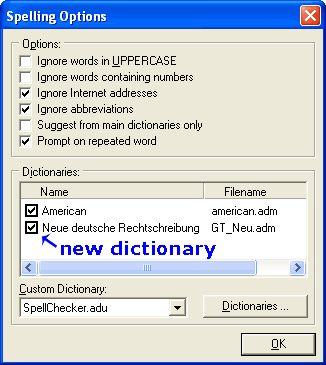
-
[ Form Pilot Home ] [ Form Pilot Pro ] [ Form Pilot Office ]
The original paper form has a white background. However, due to pure scanning quality, the scanned image has a gray background and/or the text is not clear (not black enough). How do I fix it?
You can fix the problem using the ‘White reference correction’ and ‘Black reference correction’ tools. Read more…
-
[ Form Pilot Home ] [ Form Pilot Pro ] [ Form Pilot Office ]
When I try to scan an image, I get an error message “Can’t find a scanner”.
This type of problem is usually related to Windows and may occur if you have recently updated Windows OS. Sometimes after Windows updates, the “Windows Image Acquisition” services fail. Please check Windows Services using instructions that you can find in Internet, for example here (see 2] Check Windows Services).
If this doesn’t help, try to re-install your scanner driver, restart Windows and check scanning using the standard program that is supplied by the scanner manufacturer.
-
[ Form Pilot Home ] [ Form Pilot Pro ] [ Form Pilot Office ]
I am not able to change the font size, thus I cannot fit needed text into the fields on the form.
You can change font size in the “Properties” window (by default, the “Properties” window is docked on the right of the program screen). If you cannot see the “Properties” window:
1) Check if the “Properties” window is enabled: go to menu “View” > “Toolbars and Docking Windows” > “Properties” and make sure it is checked:
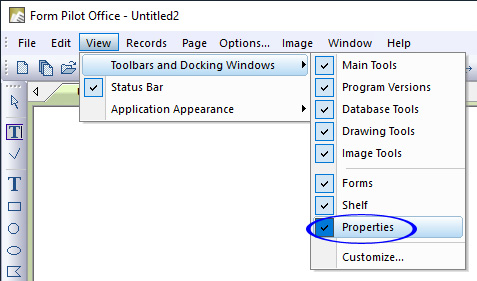
2) Make sure that the “Properties” window is not overlapped by other windows. Look for the “Properties” tab on the right of the program screen and click on it. 3) It can happen that the tool panels are hidden in the right part of the program window. One can see only the left border of the panels. Put the cursor on this border (marked with the blue spot) and drag it to the left until the whole panels are visible. 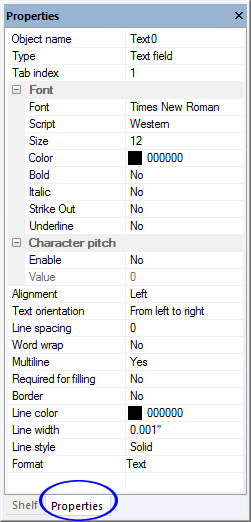
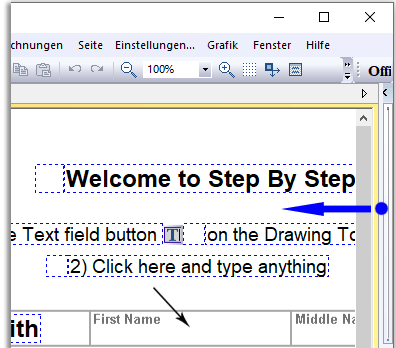
-
[ Form Pilot Home ] [ Form Pilot Pro ] [ Form Pilot Office ]
I have Form Pilot for Windows and I am going to buy a Mac computer. I am curious if I can transfer my forms I have saved in the Windows version.
Please note that “Form Pilot for Windows” and “Form Pilot for Mac” are different programs (although, they are developed for the same purpose), and they are not meant for working with the same document on the both OS. They save documents in different formats.
In “Form Pilot Pro” and “Form Pilot Office” for Windows OS, beginning with the version 2.71, we have added a converter that allows you to save your document in .fdx format. After you converted your documents to .fdx-format, you will be able to open them on Mac. But there is no possibility to save a document on Mac and open it on Windows.
There is also a possibility to convert an entire folder with Form Pilot documents from .fdc to .fdx, using the command line. You can use the command: FormPlt.exe /in C:\Doc\FDC /fdx C:\Doc\FDX
-
[ Form Pilot Home ] [ Form Pilot Pro ] [ Form Pilot Office ]
How do I change the X mark to a Check mark to insert in a checkoff box in a form?
1. Select the X mark in your form.
2. In the “Properties” window specify “Check mark” – > “Yes” (by default, the “Properties” window is docked on the right of the program screen, if you cannot see it, go to menu “View” | “Toolbars and Docking Windows” | “Properties” and activate it).
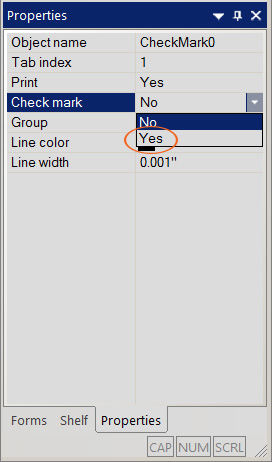
The X mark will change to a Check mark.
-
[ Form Pilot Home ] [ Form Pilot Pro ] [ Form Pilot Office ]
How do I backup documents created in Form Pilot and how do I restore them from a backup?
We recommend that you regularly backup documents that you create in Form Pilot. Beginning from version 2.29, you can create/restore a backup with a couple of clicks and set automatic backup as well. Read more…
-
[ Form Pilot Home ] [ Form Pilot Pro ] [ Form Pilot Office ]
I have captured a document with a camera, the document is in a RAW format. Why I can’t open it in Form Pilot?
Form Pilot does not support RAW format. Processing of RAW-files has a significant limitation, because each camera manufacturer has its own RAW format, and in addition, RAW has its own modification for each camera model. Therefore, to work with the RAW format, it is better to use programs from the manufacturer of the photo camera (read more about RAW format…) To be able to work with images in programs such Form Pilot, it is recommended to convert them to the most common formats, such as JPG.
Form Pilot lets you open documents in the following file formats: BMP, GIF, TIFF, PCX, JPEG, PNG, EMP.
-
[ Form Pilot Home ] [ Form Pilot Pro ] [ Form Pilot Office ]
I need to print the document in landscape. How do I change the page orientation?
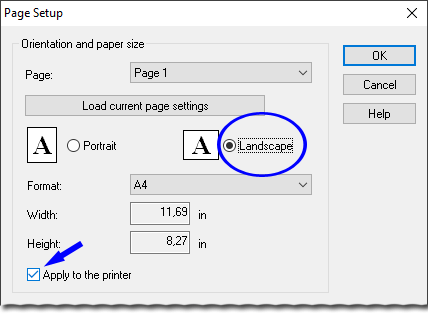
1. To change the page orientation, select menu File | Page Setup… and set the orientation to Landscape in the opened dialog box. Also make sure that the “Apply to the printer” checkmark is active:
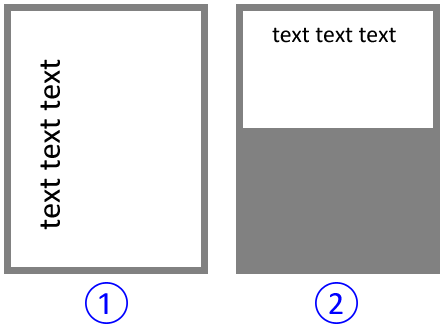
2. You might need to rotate the document (if it looks like in the picture 1): go to menu Image | Rotate | 90° CW:
-
[ Form Pilot Home ] [ Form Pilot Pro ] [ Form Pilot Office ]
What is the difference between the “Text” tool and the “Text Field” tool?
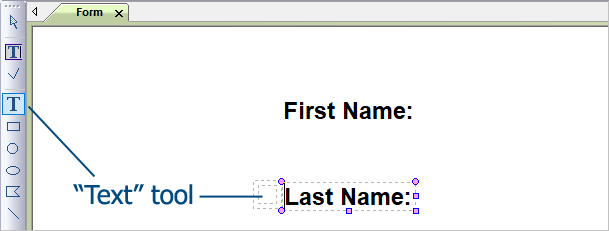
The “Text” tool is meant for creating form text. This text will not be printed on a pre-printed form unless you set it on the “Properties” panel.
The “Text Field” tool is recommended for filling forms.
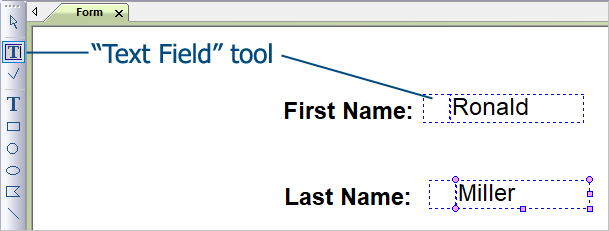
4) Make sure that you selected a text field you want to edit. Otherwise, the “Properties” window will be blank.
How to choose the appropriate form-filling software
-
All I want is to scan my form, fill it out on my computer and print out either only the text or the text and form together.
Start with Form Pilot Home. If in the future you need more features, you can always pay the difference and get the program that you need.
-
Our work involves filling out the same paper forms with different data. We need to archive all data from the forms in electronic PDF format. What program should we choose?
Take a look at our Form Pilot Pro. It was specially designed to fill out the same paper forms with different data. Form Pilot Pro supports PDF export so that you can archive your forms using PDF format.
-
I want to compile my forms into one multipage document. Which of your programs allow me to do that?
Form Pilot Pro and Form Pilot Office work with multipage documents.
-
I have a lot of PDF documents that I need to fill out, but I can not save the forms for further use in Adobe Reader. It’s very irritating!
All the Form Pilot programs (Pro, Home, and Office) allow filling out PDF documents. You can save a template of any form for further use and you can also convert that filled form back into PDF format.
-
I want to send my customer a PDF form to fill out and send back to me by e-mail.
You can prepare forms with Form Pilot Office and send it to your users. They then can fill out and save them using Filler Pilot.
Your partners or customers will be able to download and install our free Filler Pilot (very fast and simple) and fill in only the fields that you created for them in Form Pilot Office. The filled-out form can be saved (in the program format, in PDF or in a special format without the image), printed out and emailed back to you.
You can download the demo versions from our site, install both the programs on your computer and try them out.
-
I want to have the ability to insert data from forms filled out by my clients into my database.
If your clients fill out the form with Filler Pilot, they can save the form in a special format without the image and e-mail it to you. All you have to do is use the command “Import from document”. All the data will be loaded into the document database; and you then can export them into an external database.
-
I have a multipage form and I have to type the same text repeatedly on different pages. I want to insert the data just once and have it appear on all of the pages.
You can do that with Form Pilot Office. The program work like this: you create what we called clone fields; then you insert your information in the parent field once and the identical information appears in all of the cloned fields.
Form Pilot: Main Page Features Download Order Tutorial FAQ News