
Form Pilot: Main Page Features Download Order Tutorial FAQ News
What is a Form
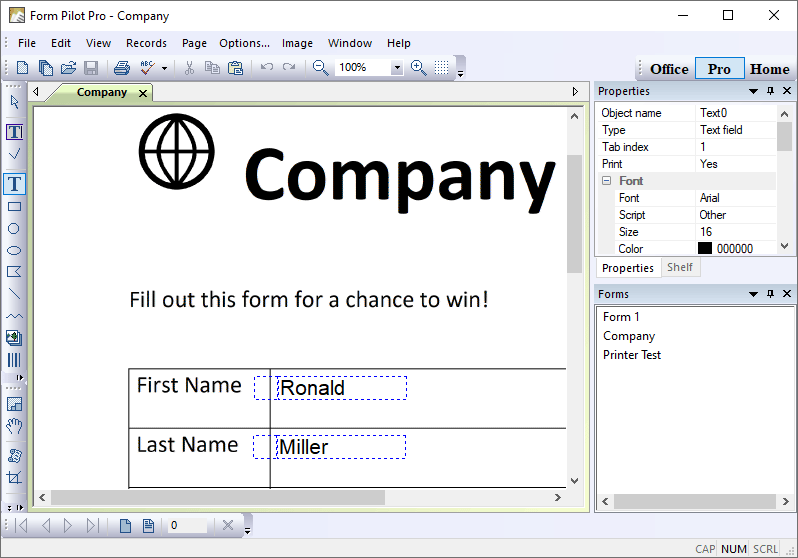
A form is a document that you need to fill out. A form created in Form Pilot may include a background image, form text, fillable fields, and image objects. Form Pilot Office allows creating special forms with fillable fields which can be filled in by other users with free Filler Pilot software.
What is a Form Template
A form template is a form that you can use later as a template for other forms. The Forms panel (at the right of the program window) is a convenient place to store form templates.
- How to Create a New Form Template
- How to Edit a Form Template
- How to Delete a Form Template
- How to Fill a Form Using a Form Template
How to Create a New Form Template
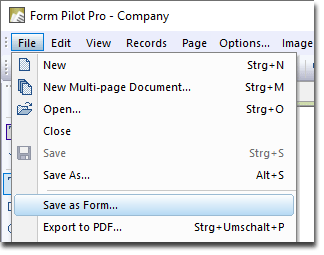
A form template can be created based on the active document opened in the program window. Use the File | Save as Form… command:
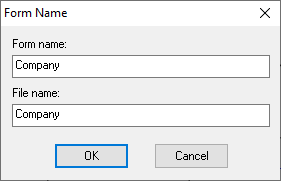
The Form Name dialogue allows you to change the name of the form and the name of the form’s file:
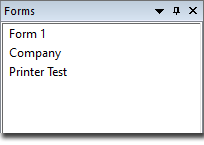
By default, form template files are saved in the “\Documents\Form Pilot\Forms” folder. The list of the saved templates is displayed in the Form panel at the right of the program window:
How to Edit a Form Template
1. On the Forms panel, right-click a form name and choose the Open to Edit option:
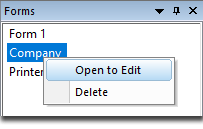
2. Edit the form template.
3. To save the edited form as a template, choose File | Save as Form… If you don’t need to save the edited form as a template, you can choose File | Save to save it as a regular filled form. By default, regular filled forms are saved in the “\Documents\Form Pilot\Filled Forms” folder.
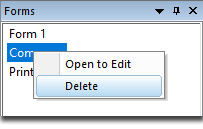
How to Delete a Form Template
On the Forms panel, right-click the form name and choose the Delete option.
How to Fill a Form Using a Form Template
You can use one and the same template to fill out with different data. Each time you filled a form template, you can save the resulting document as a regular filled form (not on the Forms panel). Here’s how it works:
1. On the Forms panel, right-click a form name and choose the Open to Edit option:
2. A document based on the chosen form, will open in the program window. You can edit the form as you need – change the text in the text fields, add new text fields and images, etc.
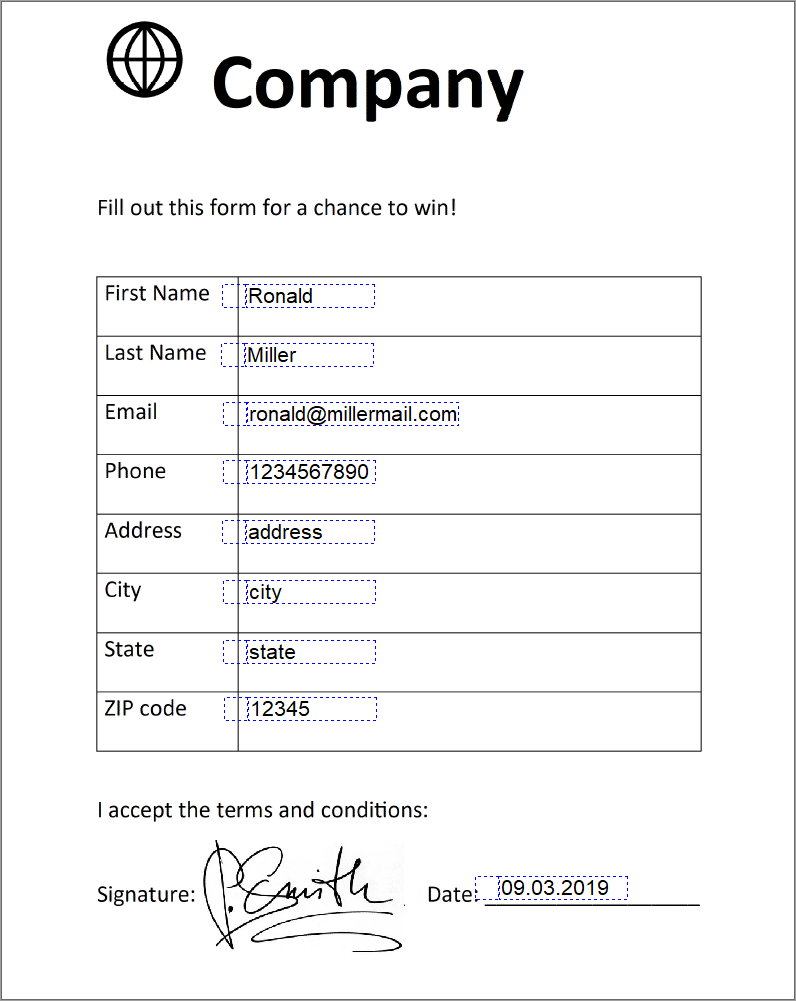
3. Choose File | Save to save the document as a regular filled form. By default, filled forms are saved in the “\Documents\Form Pilot\Filled Forms” folder.
When ready, your document can be printed or sent by fax or email. If you use Form Pilot Pro or Form Pilot Office versions, you can export your form to PDF (menu File | Export to PDF…)
If you need to fill another form based on the same template, you can close the previously filled form and repeat steps 1-3.
Form Pilot: Main Page Features Download Order Tutorial FAQ News