
Form Pilot: Main Page Features Download Order Tutorial FAQ News
- Form Pilot Pro – For filling out forms professionally
- Form Pilot Home – For filling out forms from time to time
- Form Pilot Office – For form-filling and creating custom forms
Our Advantage: With each Form Pilot program, you can fill out a form in any initial file format! More about “Form Pilot” Virtual Printer…
Form Pilot Pro
Basic From Pilot software for filling out paper and electronic forms on your computer instead of using a typewriter.
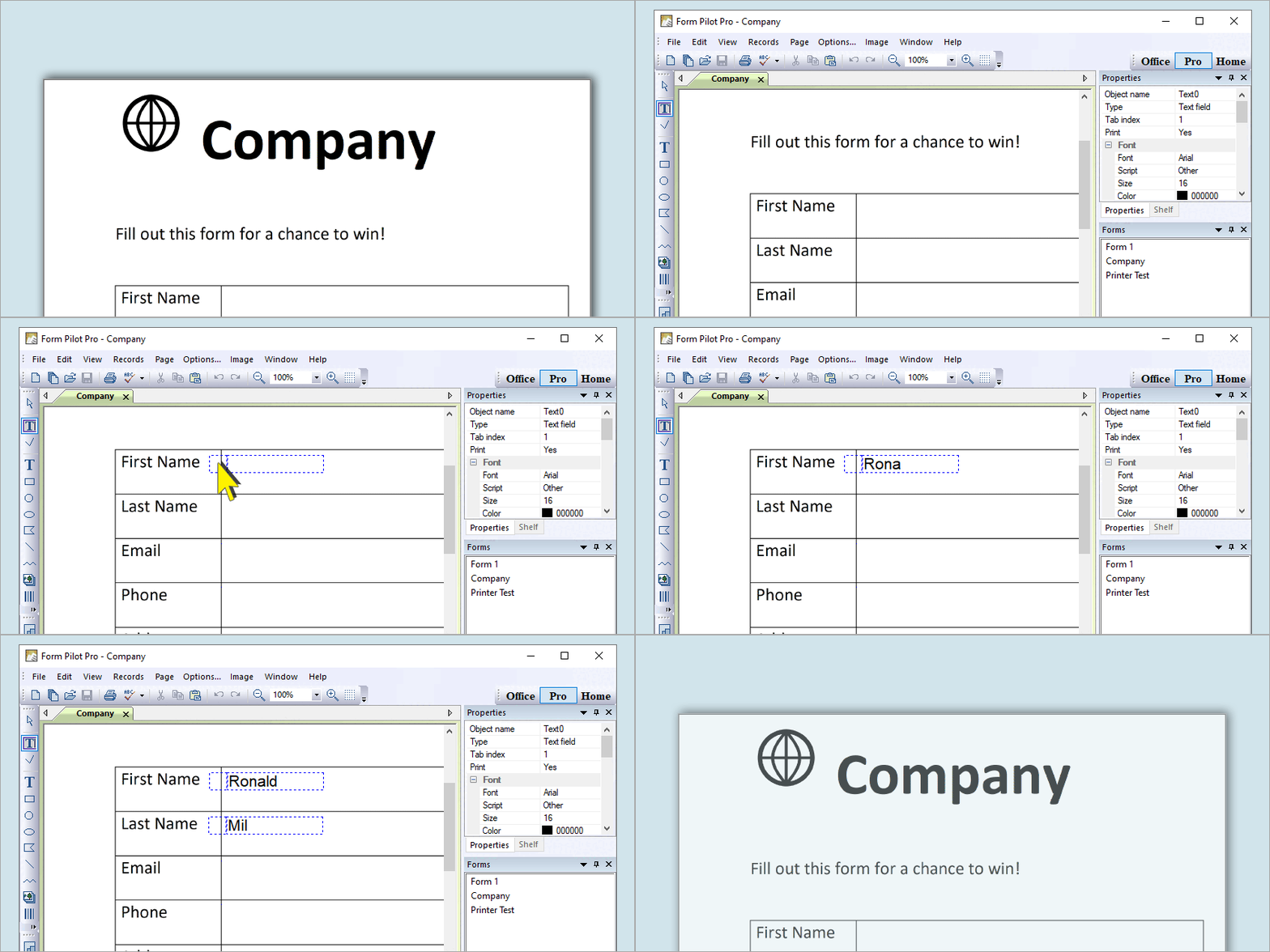
Filling out paper forms: If you have a scanner connected to your computer, you just scan your form directly from the program, get the form image on the screen, and fill out the form by simply typing where you need to have the form filled out (if you do not have a scanner, just bring the scanned form image from another computer). You can use fonts of different sizes and colors, rotate text, insert pictures, checkmarks, and even erase unnecessary text from your form. After you have completed your form input, you can save it to your hard drive or an USB flash drive, print it out for mailing, or open it and change something if you need to. You may use preprinted forms (just the text will be printed out) or blank paper to create your completed form. See also: How to fill out paper forms on a computer…
Filling out electronic forms: Form Pilot Pro also allows you to fill out electronic forms of any type (DOC, TXT, XLS, PDF documents, etc.) using Form Pilot virtual printer.
Recommended for using at home and in office, since the program is suited for working with larger quantities of documents.
Form Pilot Home
Lite version of Form Pilot. For filling out one-page electronic and paper forms.
Recommended for using at home. This form-filler is very useful for students. It also helps children who have handwriting problems and people with dysgraphia.
Form Pilot Office
This version allows you to do everything that ALL the above-mentioned form-filling programs allow. Also, with Form Pilot Office, you can create special forms for filling in by your customers and partners with free Filler Pilot.
Recommended for businesses. It is useful for companies that work with clients and that would prefer to get the filled form back from them by e-mail. It is also invaluable to companies where just a few people create forms and others fill them out on their computers.
Form-filling tasks that can be completed with the Form Pilot form-fillers
| Form Pilot version | Home | Pro | Office |
| Fill out paper forms on your computer instead of using a typewriter. See more… | + | + | + |
| Fill out electronic forms of any type (DOC, TXT, XLS, PDF documents, etc.). See more… | + | + | + |
| Fill out the same form repeatedly, using the Database Tools. See more… | + | + | + |
| Fill out multi-page paper and electronic forms of any type. See more… | + | + | |
| Save filled forms as PDF files to send them by e-mail, for instance. | + | + | |
| Export (and import) data from Form Pilot Office documents to your database. See more… | + | ||
| Create special forms that can be filled in by your clients and partners with our free Filler Pilot. See more… | + | ||
| Formats of the text fields and formulas. See more… | + | ||
| Renumbering Forms. See more… | + |
Form Pilot on YouTube
How to fill out paper forms with a computer:
See also: How to fill out a preprinted form on a PC and print it on a blank paper…
Versions History
May 19 2023 :: Version 2.83.0
* The PDF Creator Pilot library has been updated.
* Help has been updated.
January 19 2023 :: Version 2.82.0
* The document preview in landscape orientation has been fixed.
See Also
Form Pilot: Main Page Features Download Order Tutorial FAQ News