
This page explains how to export EXIF metadata to Excel format using Exif Pilot software, and how to import EXIF metadata back to digital photos after editing XML-file.
MS Excel’s Tags
Each tag in an MS Excel file is defined using the following descriptions:
- Tag – name of the tag
- ValueOfTag – value of the tag
Export Methods
There are two export methods:
- Batch export of EXIF and IPTC information for multiple images recorded in a single file.
- Batch export of EXIF and IPTC information for multiple images each recorded in separate files.
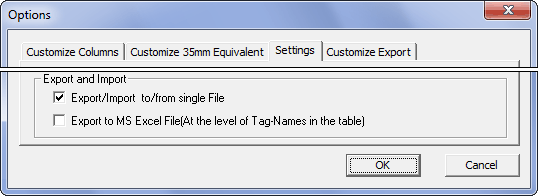
You can choose which of the two types of export/import to use. Select the main menu item “Tools”->”Options” tab, then go to “Settings” and select the option under “Export/Import to/from single File”.
Export Types
There are two types for export data into the MS Excel file:
- Tag names are in the first column of the table.
- Tag names are in the first row of the table.
You can choose which of the two types of export/import to use.
For the second type of export (tag names are in the first row of the table), you should:
- Select the main menu item “Tools”-> “Options” tab, then go to “Settings” and activate the option “Export to MS Excel File (At the level of Tag-Names in the table)”;
- Choose the template export and choose tags for export.
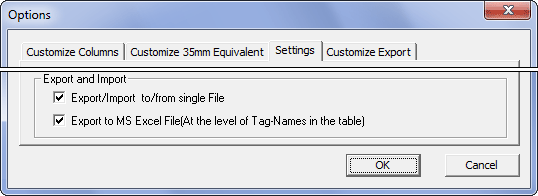
Note that using this type of export you can choose no more than 256 tags as an Excel sheet contains no more than 256 columns.
How to export EXIF metadata to Excel and import changed metadata back to digital photos
For example, to change the FNumber field on number 2.6:
1. Open Exif Pilot and choose the file to change.
2. Go to “Import/Export”->”Export Exif/Iptc to MS Excel”:
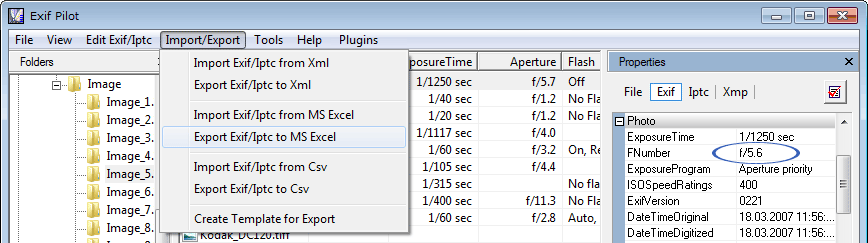
3. As instructed, open the MS Excel file:
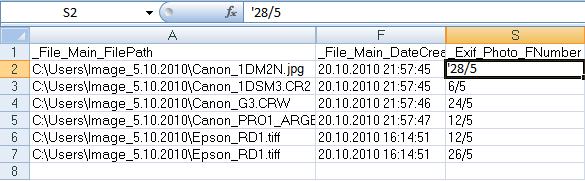
and change the value of the FNumber tag.
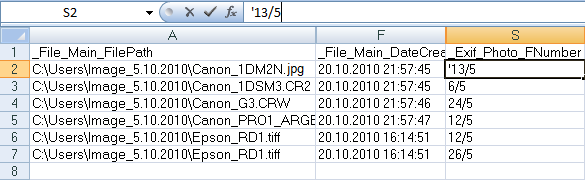
Important: Each cell in the ValueOfTag column must be formatted as text or prefixed with a single quotation mark; i.e., the sign (‘).
For example, the value 1/5 must be formatted as ‘1/5.
4. Save the MS Excel file.
5. Go to “Import/Export”->”Import Exif/Iptc from MS Excel”.
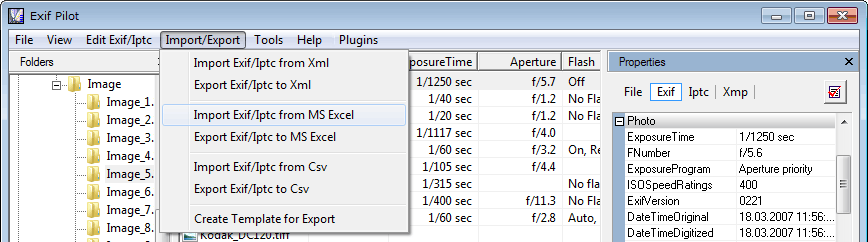
6. Choose the file to import.
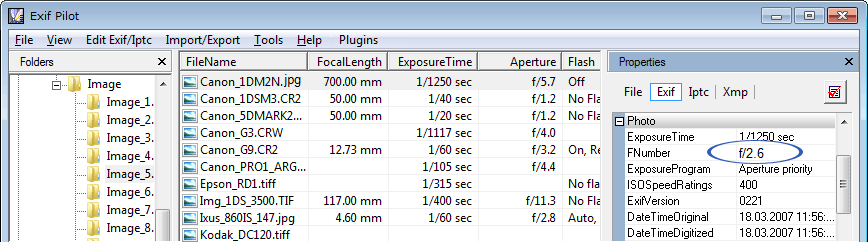
7. The FNumber field has the value 2.6.
How to import new tags to digital photos
If you have a .xls file with tags, you can import them to the image(s) using Exif Pilot. First, make export of metadata from your photos to MS Excel (see the instructions above), to see which format should the metadata have in the table. Then bring the table with the metadata you wish to import into the same format. Note that your table should have only one single spreadsheet called “ExifPilot”, otherwise the import will not work.
Important
- To avoid undesirable change of metadata, please, make backup copies of files before editing exif.
- Batch editing is available in Exif Pilot only with Batch Editing Plug-in.