Two Pilots™    Home  |  Navigation  |  Site map  |  Products  |  Download  |  Order  |  Support  |  Contact us  |  For Publishers  |  OEM


Form Pilot for Mac Tour - how to use the program


Forms to be filled out may be on paper or digital (electronic). Form Pilot works on digital (electronic) forms. Paper forms must be first scanned and converted to a digital format. Note: fine lines and small type are problems for some scanners. We’ll deal with scanners in Tutorial 2. For now let’s assume there is a high quality digital scan of the form we will fill out.

Tutorial 1: Starting

Step 1: Inserting a form

When we fill out a form with a typewriter, the form is a sheet of paper. To fill it out, we have to insert it into the typewriter, adjust its position and type, trying our best to avoid mistakes.

Working with Form Pilot is very similar. First, we have to “insert” a form into Form Pilot. Strictly speaking, you are inserting your form into a Form Pilot document. An untitled new document is automatically created whenever Form Pilot is launched.


Let’s select a form to fill out. We will use a PDF file provided called (f1.pdf) on the disk.

Launch Form Pilot. Choose the "Open" item from the menu "File", find the form you need to fill out (f1.pdf) on the disk, and click at the "Open" button. A new Form Pilot document will be created, containing the form.


Another way: launch Form Pilot, and

  • click at the "Import Form" button in the toolbar, OR
  • choose the "Import Form" item from the menu "File", OR
  • choose the "Import Form" item from the menu "Objects", then find the form you need and click at the "Open" button.

The form will be imported into the new untitled Form Pilot document that was created when the program launched.

There is also a great shortcut for those who like to look smart. Both the Form Pilot application and the f1.doc must be visible in the Finder at the same time. Select the icon of f1.doc, drag it and drop at the icon of Form Pilot application (the latter should dim, confirming that it knows what to do). Form Pilot will launch (or activate if it was launched before) and a new Form Pilot document containing our form will be created.

A form inside a Form Pilot document behaves like background.

Form Pilot may import (open or open and import) forms, represented by many graphic formats, such as TIFF, PNG, JPG and so on.


Step 2: Adjusting the form

The forms that have been scanned or received by fax are often look rotated, like this:

In cases like this, you can rotate the form with the "Rotate Form:" slider in the Inspector panel. You can type an angle in the text field in the "Rotate Form" box. Angles are expressed in degrees, clockwise.

To move a form inside the window, select the "Hand Holding a Sheet of Paper" tool in the Tools panel, then click anywhere in the window and drag. The form will move.


Step 3: Filling the form

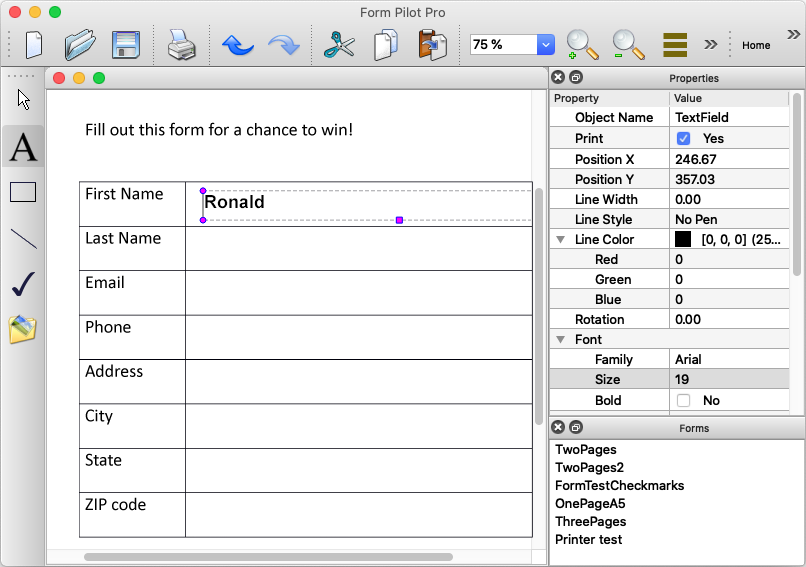
All typing in Form Pilot documents goes on in "text fields".

Select the "Text" tool in the Tools panel, click where you want to type a text. If the text appears in a wrong position, it is always possible to drag it around by choosing the "Arrow" tool in the Tools panel. After a text field is created, Form Pilot automatically switches back to the "Arrow" tool. If you want to create several text fields, select the "Text" tool by double clicking on it. The "Text" tool will remain active until you select another tool or close the document.

You can navigate between the text fields without the help of a mouse - by clicking the Tabulation key (TAB) to move forward or the Shift and Tabulation keys simultaneously to move in the reverse direction.

You don't have to type words completely. Form Pilot will finish the word for you. Type the beginning of a word, and press the "Escape" key (ESC). Form Pilot can fill the pop-up list with your own words and phrases, those specific to your organization or group.

It is simple to check spelling. If you make a mistake, just go back and correct it.

You are not limited to typing text only. You can also to draw simple graphics or to add images to the form. For example,, some lines in the forms that have been scanned or received by fax may be corrupted (dashed or dotted). The "Line" tool may help to improve their look.


Step 4: My form is filled out. Now what do I do?

If you have a blank sheet of paper, insert it insert it into the printer and the check box "Include Form in Printing". This will print the entire form with the entries that you have made on the blank sheet of paper.

If you have a preprinted form that needs to be filled out, make sure the “Include Form in Printing” box is NOT checked. This will only print the fields that you have entered.

Note: All lines and simple graphics that you created in the Step 3 to correct the appearance of the form are NOT considered as a part of the form. They will be printed even if the form itself is excluded from printout.

To send the filled form by fax or by e-mail, switch the check box "Include the Form in Printing" on, then select the "Print" menu item from the menu "File", and in the Print panel press and hold the "PDF" button in the lower left of the Print panel. It will bring up a pop-up menu with items such as "Save to PDF...", "Save PDF to PostScript...", "Fax PDF" and many others.

It is a good idea to send a form by e-mail as a PDF-file. Some people do not have Form Pilot yet... %0(


Tutorial 2: Scanning

Step 1: Inserting a form

Needed: a paper form and a scanner

Launch Form Pilot. A new untitled Form Pilot document will be created.

Make sure that the scanner is connected, and turned on. Place your paper form into the scanner. Try to position it well. Take care that the reading surface of the scanner was clean. Dust and dirt will degrade scanning quality.

Now, choose the "Scan Form" item from the "File" menu.

Now, Form Pilot will make its best to find all scanners connected to your computer. If it fails... reboot the operating system. Due to a problem with scanner-related libraries of Mac OS X, a scanner may sometimes fall into a "faint" state. Hopefully, a next version of Mac OS X will fix that problem, and there will be no need to reboot.

If the restart did not help... your scanner is not supported. This may happen with some older scanners.Device-specific software, developed by the manufacturers, may serve as the last resort.

If that is the case, then just scan your form with that software into a graphic file, and import that form into a Form Pilot document (as described in Tutorial 1 Step 1).

If the scanner (or scanners) has been recognized, Form Pilot is ready to scan the form. Click at the "Scan" button. Then click at the "Import" button, and see how the form looks and feels.

If you are using pre-printed forms in your printer, and make sure that both forms are the same size. You may also want to do a test print on a plain sheet of paper, to avoid ‘wasting” the valuable pre-printed form.

To correct and adjust size of the imported form: check the "Show More Options" checkbox. In the lower part of the drawer that appears when this checkbox is checked, you may control scaling and dimensions of the form or of its selected area.

Note: Unless you've selected an area in the scanned image, Form Pilot considers all scanned area to be its selection.


Step 2: and further...


Download Form Pilot for Mac 1.26 (2.0M)

Form Pilot for Mac main page

See also our line of software for Mac OS X


Page top