
These step-by-step instructions will show you how to batch change exif data using Batch Editing Plug-in for Exif Pilot.
Batch editing is available using:
Multiple Photos Processing Using the Program Interface
As a result of batch editing, values of edited EXIF parameters will be the same for all files included in the batch.
To edit EXIF data in batch:
- Choose the files you want to edit.
- Click the “Edit EXIF/IPTC” button:
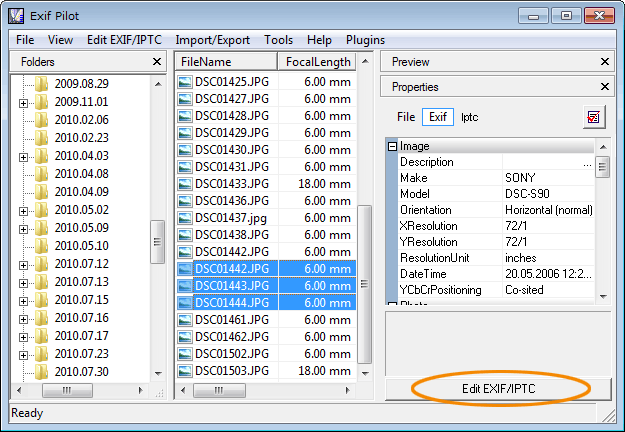
3. The following window will appear:
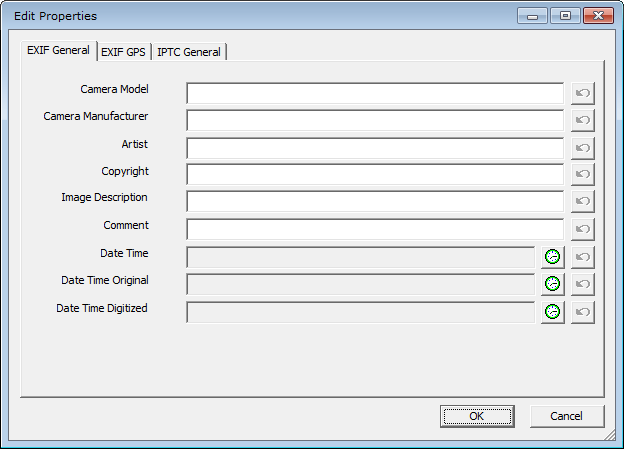
4. Add required data to the fields, for example:
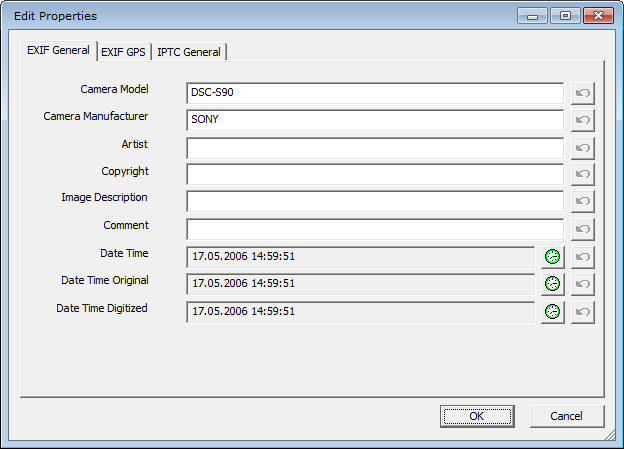
5. Click “Ok”. In this case the options you have edited become the same new instead of previous for all selected files.
6. To edit date and time click the “Edit” button next to requested option:

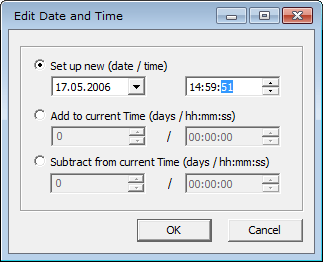
The following window will appear:
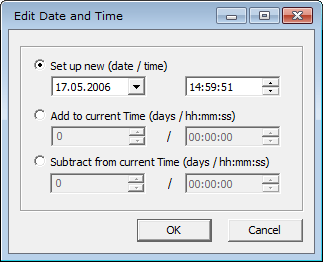
Please pay attention to the time used in 24-hour format. This means, if you want to change time to 3 PM, you need to add 12 hours to the “PM” time: 3+12=15. So, you need to enter “15:00:00”.
Further there are two ways of editing date (time).
The first way is to set new date (time). Note, the fields you are editing this way will become the same for all selected files.
The second way is to add (or subtract) any days and (or) time to current date (time). Note, in this case the edited fields will not be the same for each of selected files if there was any difference before editing.
7.1 To set new date, edit the left field of the “Set up new (date / time)” option, to set new time, edit the right field of the option:
For example, you have selected two files with the date (time) values:

Say, you set the following date and time:
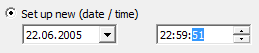
As a result you will get the same date / time fields at both of the selected files:

7.2 To add several days (hours) to current date, use the “Add to current time (days / hh:mm:ss)” field.
To subtract several days (hours) from current date, use the “Subtract to current time (days / hh:mm:ss)” field.
First, activate the radio button of a suitable field. Set timestamps for example, 2 days ,1 hour and 10 minutes ahead:
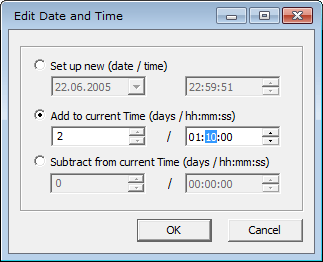
Click the “Ok” button:

In this case the days (time) will be added to the current dates (time) of the selected files. The date (time) of each selected file will be altered by the value you have set. So these fields will become not the same as before:
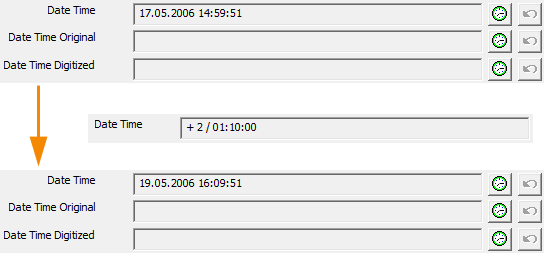
Using the program interface, the EXIF General, EXIF GPS, and IPTC General tags can be changed.
Batch Editing using Export / Import
Batch editing can be accomplished through exporting/importing EXIF and IPTC data to XML, MS Excel, and CSV files. This method allows you to change tags that can’t be edited using the program interface. More…
To avoid undesirable change of metadata, please, make backup copies of files before editing.
Note that the batch editing is available only with Batch Editing Plug-in…
See also